Array
(
    [0] => Array
        (
            [0] => Array
                (
                    [label] => Home
                    [link] => https://sftlatestbackup.staging33.com
                    [title] => Home
                    [type] => blog_home
                )

            [1] => Array
                (
                    [label] => Knowledge Base
                    [link] => https://sftlatestbackup.staging33.com/knowledge-base/
                    [title] => Knowledge Base
                    [type] => kb_home
                )

            [2] => Array
                (
                    [label] => Assignment Deadlines Pro for Learndash
                    [link] => https://sftlatestbackup.staging33.com/article-categories/asdld/
                    [title] => View all posts in Assignment Deadlines Pro for Learndash
                    [type] => kb_tax
                )

            [3] => Array
                (
                    [label] => Getting Started With ASDLD
                    [link] => https://sftlatestbackup.staging33.com/article-categories/asdld-getting-started/
                    [title] => View all posts in Getting Started With ASDLD
                    [type] => kb_tax
                )

            [4] => Array
                (
                    [label] => Installing Assignment Deadline Pro Plugin
                    [link] => https://sftlatestbackup.staging33.com/knowledge-base/installing-assignment-deadline-pro-plugin/
                    [title] => Installing Assignment Deadline Pro Plugin
                    [type] => kb_current_page
                )

        )

)
  1. Home
  2. Knowledge Base
  3. Assignment Deadlines Pro for Learndash
  4. Getting Started With ASDLD

Installing Assignment Deadline Pro Plugin

Follow the steps below to download and install the plugin on your site:
Step 1: Download the Plugin File

  • Navigate to My AccountPurchase History.
  • Locate the order for Assignment Deadlines Pro for LearnDash and click on View Details & Downloads. This will take you to the Order Details page.

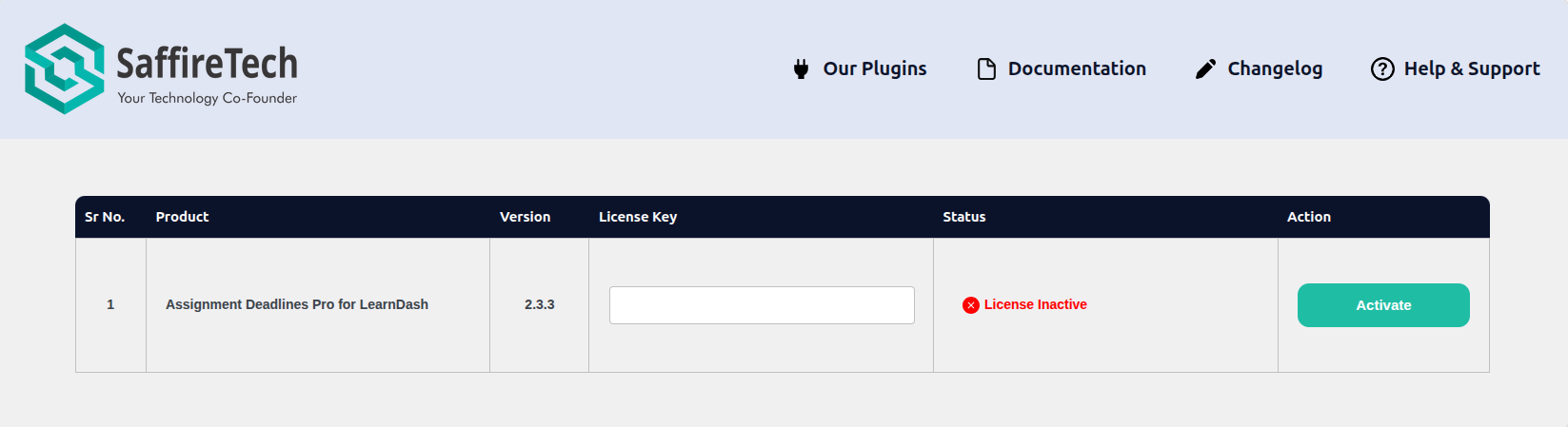
Step 2: Install and activate

  • On the Order Details page, you’ll find all your purchase information, including your license key and a download link for the plugin file. Under the Products section, click the provided link to download the plugin ZIP file.

Once the plugin is installed and activated, you’re ready to start using Assignment Deadlines Pro and exploring its powerful features. If you ever need help configuring settings or managing assignment deadlines, feel free to check out our other guides in the Getting Started section.

Was this article helpful?

Related Articles

Need Support?

Can't find the answer you're looking for?
Contact Support