
The Global Email Notification Settings allow you to automatically send emails related to assignment deadline reminders and deadline extensions. This feature ensures that students are kept informed about upcoming due dates and are promptly notified of any changes to assignment deadlines—helping them stay on track and organized.
Assignment Deadline Reminder Emails
Keep students on track with automated email reminders for upcoming assignment deadlines. This feature can be enabled by navigating to:
LearnDash LMS → Settings → Assignment Deadlines for LearnDash → Deadline Reminder Email.
Once enabled, you can specify the number of days before the assignment deadline when the reminder email should be sent. These reminders help students stay informed and plan their time effectively.
The email content is fully customizable, allowing you to personalize the message to match your course tone and provide clear, relevant information. This ensures students receive timely notifications that encourage them to complete assignments on time.
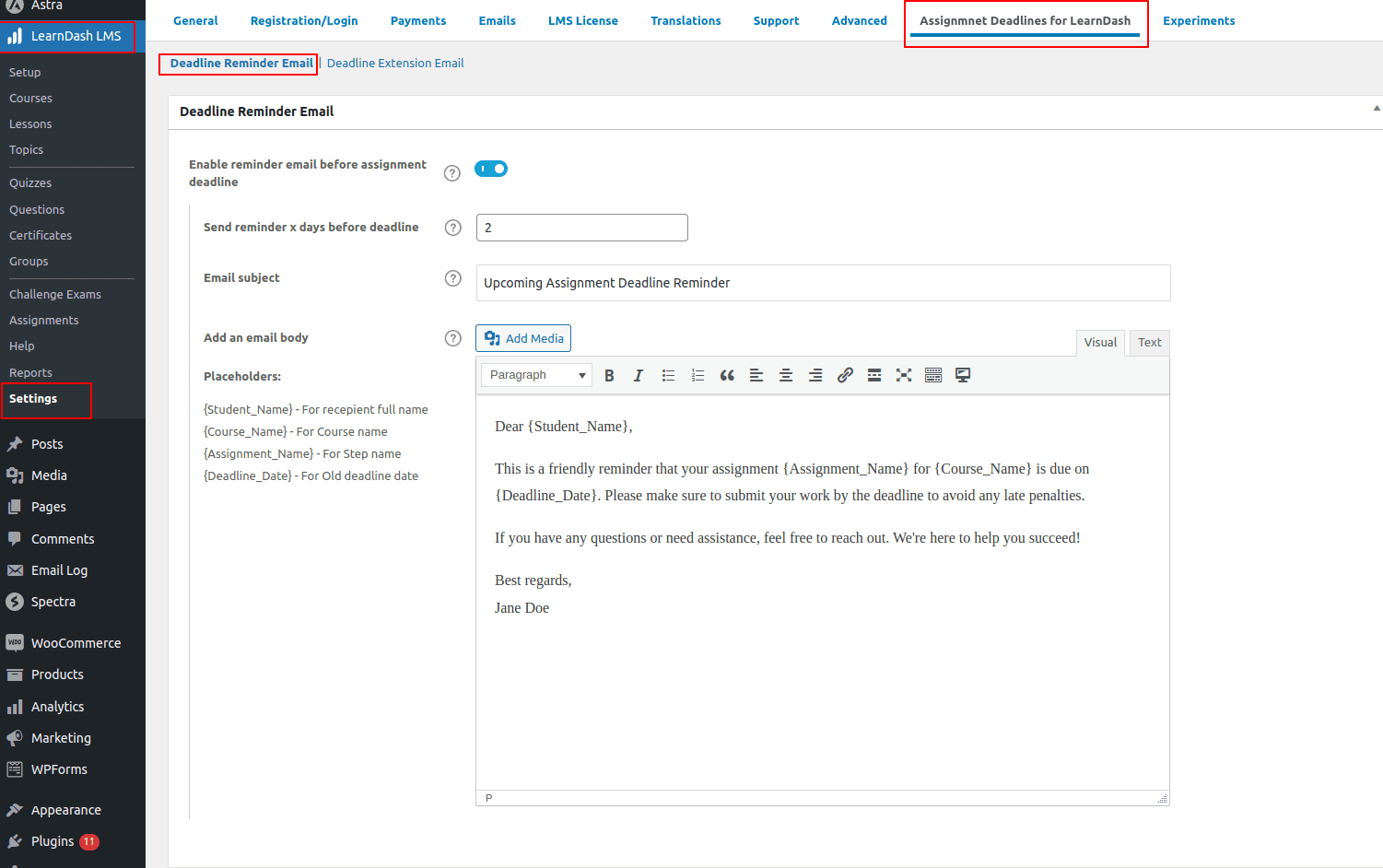
You can fully customize the content of the reminder email to match your communication style and better engage your students. To make the message more personal and informative, you can use the following dynamic placeholders:
- {Student_Name} – Automatically replaced with the student’s name.
- {Course_Name} – Displays the name of the course.
- {Assignment_Name} – Inserts the name of the assignment.
- {Deadline_Date} – Shows the assignment’s due date.
These placeholders help create clear, personalized notifications that improve student awareness and encourage timely submissions.
Assignment Deadline Extension Notifications
Keep students informed when assignment deadlines are extended with automated email notifications. This feature can be enabled by navigating to:
LearnDash LMS → Settings → Assignment Deadlines for LearnDash → Deadline Extension Email.
Whenever a deadline extension is applied—either for individual students or in bulk—an automatic email can be sent to notify students of the updated due date. These changes are made using the Assignment Deadline Management Dashboard, where instructors can manage and adjust deadlines efficiently.
The email notifications are fully customizable, allowing you to personalize the message content and ensure clear, consistent communication regarding any changes to assignment timelines.
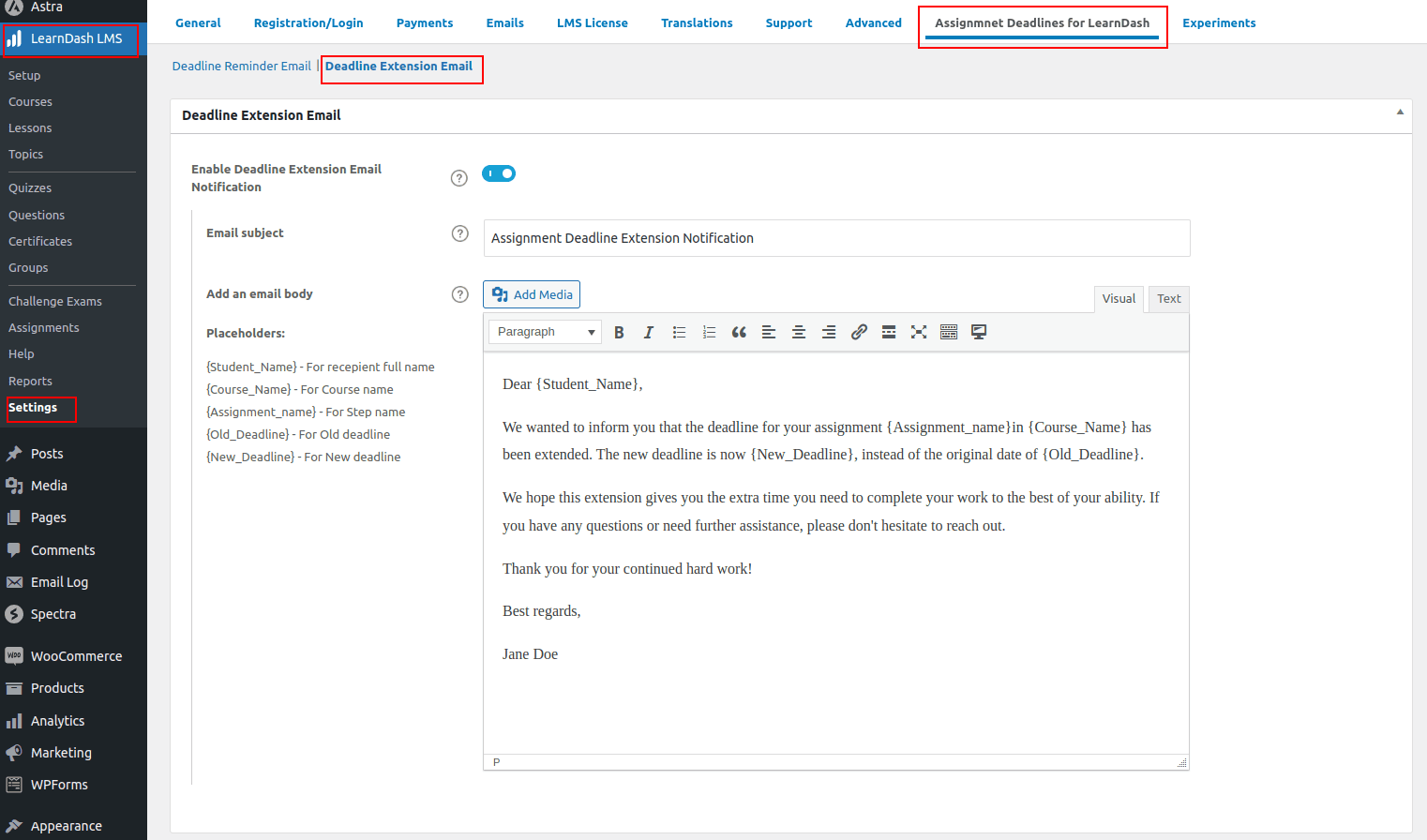
To make your message more personalized and informative, you can include the following dynamic placeholders in the email content:
- {Student_Name} – Automatically replaced with the student’s name.
- {Course_Name} – Displays the name of the course.
- {Assignment_Name} – Inserts the name of the assignment.
- {Deadline_Date} – Shows the original assignment deadline.
- {New_Deadline} – Displays the updated deadline after the extension.
Using these placeholders helps you deliver clear, student-specific notifications that enhance communication and ensure learners are aware of important changes to their assignment schedules.
To manage all assignment deadlines from a single place, refer to the Assignment Deadline Management Dashboard article. This guide explains how you can view and update deadlines across all courses, make bulk changes, and manage deadlines more effectively by referencing any holidays or breaks you’ve set in the system.
