
Easily manage assignment deadlines with the flexible Deadline Extension feature, designed to support diverse student needs and dynamic academic schedules. This setting allows instructors to extend an assignment’s deadline by a specific number of hours or days, providing greater control over submission timelines. Additionally, you can choose to send email notifications to students, ensuring they are promptly informed of any changes to the assignment’s due date.
Extending Deadlines
To access these settings: Go to Assignment Settings of the relevant Lesson or Topic → select Manual under Deadline Type → click on Extend Deadline.
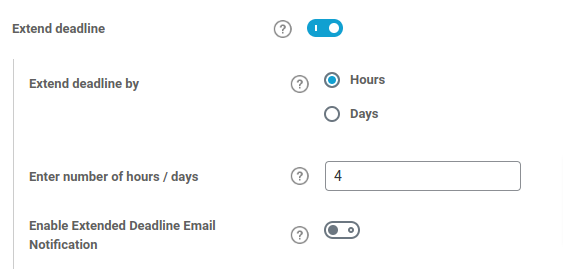
To use this option, first choose whether you want the extension to be applied in hours or days. Then, in the input field, enter the number of hours or days you wish to add to the current deadline. The selected value will be added to the existing assignment deadline, giving students additional time to complete and submit their work.
There are no restrictions or limits on the number of hours or days you can enter, so you can tailor the extension based on the specific needs of your course, student circumstances, or institutional policies.
Notify Students About Extended Deadlines
To access this setting, navigate to Extended Deadline and enable “Enable Extended Deadline Email Notification.”
This feature ensures that students receive automatic email notifications whenever an assignment deadline is extended. It helps keep students informed of any changes in submission timelines, promoting timely awareness and reducing missed submissions due to uncommunicated updates.
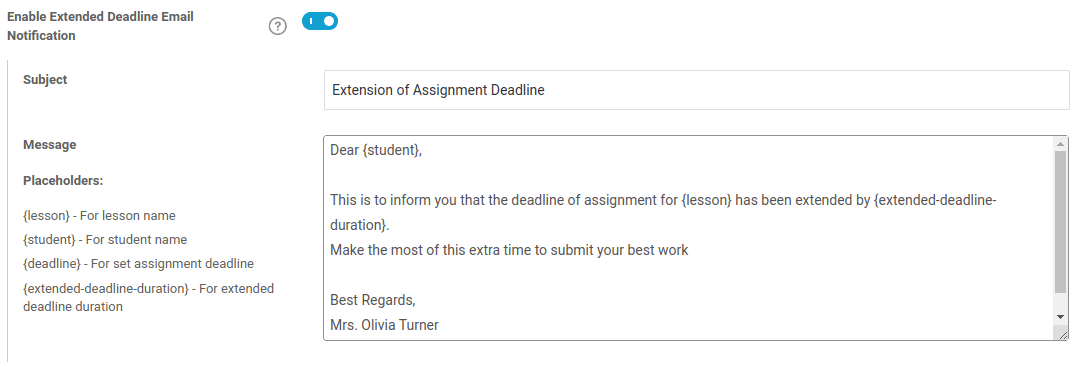
You also have the flexibility to customize the content of the email to better align with your communication style and student needs.
The following dynamic placeholders can be used in the email message to personalize the content:
- {lesson} – Inserts the name of the lesson where the assignment is located.
- {topic} – Inserts the name of the topic containing the assignment.
- {student} – Automatically replaced with the student’s name.
- {deadline} – Displays the original assignment deadline.
- {extended-deadline-duration} – Shows the duration by which the deadline has been extended.
These placeholders make your notifications more relevant and student-focused.
Note: This functionality is only available when the assignment deadline type is set to Manual. If you’re using an automatic deadline system, this option will not be accessible.
To learn how to assign deadlines to LearnDash assignments, please refer to the Assignment Deadline Configuration article. It provides a step-by-step guide on enabling deadline settings and choosing between manual or automatic deadline options.
