
Array
(
    [0] => Array
        (
            [0] => Array
                (
                    [label] => Home
                    [link] => https://sftlatestbackup.staging33.com
                    [title] => Home
                    [type] => blog_home
                )

            [1] => Array
                (
                    [label] => Knowledge Base
                    [link] => https://sftlatestbackup.staging33.com/knowledge-base/
                    [title] => Knowledge Base
                    [type] => kb_home
                )

            [2] => Array
                (
                    [label] => Assignment Deadlines Pro for Learndash
                    [link] => https://sftlatestbackup.staging33.com/article-categories/asdld/
                    [title] => View all posts in Assignment Deadlines Pro for Learndash
                    [type] => kb_tax
                )

            [3] => Array
                (
                    [label] => ASDLD Licensing & Updates
                    [link] => https://sftlatestbackup.staging33.com/article-categories/asdld-licensing-and-updates/
                    [title] => View all posts in ASDLD Licensing & Updates
                    [type] => kb_tax
                )

            [4] => Array
                (
                    [label] => ASDLD Activating License
                    [link] => https://sftlatestbackup.staging33.com/knowledge-base/asdld-activating-license/
                    [title] => ASDLD Activating License
                    [type] => kb_current_page
                )

        )

)
  1. Home
  2. Knowledge Base
  3. Assignment Deadlines Pro for Learndash
  4. ASDLD Licensing & Updates

ASDLD Activating License

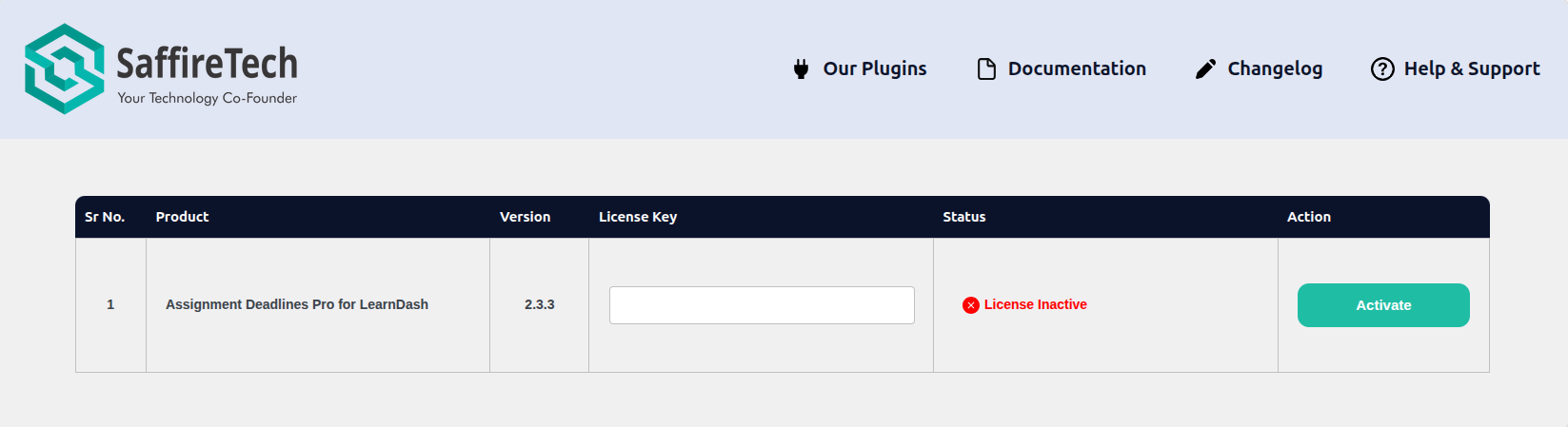
To activate your SaffireTech license, follow these simple steps:

  • Navigate to the SaffireTech License Menu
    In the admin area of your site, locate and click on the SaffireTech License menu option.
  • Access the SaffireTech License Page
    This will take you to the SaffireTech License Page, where you can manage the licenses for all of our plugins in one place.
  • Enter Your License Key
    On the License Page, find the field where you can enter your License Key.
  • Activate Your License
    After entering your License Key, click on the Activate button. This will activate your license and grant access to the full functionality of the plugin.

And that’s it! Once your license is activated, you’re all set to start using the plugin.

Was this article helpful?

Related Articles

Need Support?

Can't find the answer you're looking for?
Contact Support