






User data management on your WordPress site can quickly spiral out of control. This is especially true when dealing with membership sites, WooCommerce stores, and even online learning sites. No matter whether you have changed sites, updated profiles, or are sending lists of customers to third-party tools, it’s essential to WordPress import and export users efficiently, securely, and reliably.
When you can easily WordPress import users into WordPress or export users by way of the built-in tools or a robust plugin, why would you manually add hundreds of accounts or delete ones you don’t want? You can save time, prevent user errors from manual processes, and connect directly to your user data.
In this article, we will take you through the step-by-step process of importing and exporting WordPress users, including our best plugin recommendations and expert tips, so you can manage users in bulk!
Importing and Exporting Users in WordPress

When it comes to managing user data robustly, we see two methods to import export wordpress users and woocommerce customers:
1. Plugins
Plugins are the simplest and safest way to handle bulk user transfers. The plugins allow you to import or export users from WordPress without disturbing your database directly. Many plugins will allow you to upload or download CSV files, map user roles, conditionally display fields, and automate repetitive tasks, often all with a few clicks.
For any beginner, site admin, or WooCommerce store owner working with large datasets, it is also a very secure way to manage user information. A WordPress import export users plugin could prevent wasted hours of manual work that lead to expensive mistakes.
2. Manual CSV Approach
For those who are comfortable working with WordPress databases, you can manually export users (through built-in tools or phpMyAdmin) and then even modify the user data in a CSV after export to import it as users in your new install. While this may provide more control of the data, you would need the technical insight to do this correctly, and if you are not operating professionally, there would seem to be a greater risk of a problem here.
The majority of website owners with a user base, especially with an extensive list of users, are generally better off using a designated WordPress import and export plugin rather than spending unnecessary time and effort managing the export of users.
If you need more complex customizations or automation, you can approach experienced WordPress plugin developers to have a scheduled solution developed that is tailored to you.
Export Users from WordPress

Exporting users is just as important as importing, especially when migrating to a different site, backing up, and/or using third-party tools. Below are the detailed steps on how to export WordPress users efficiently and safely —
Step 1: Install a User Export Plugin
Use a reputable plugin like Import Export WordPress Users. It is an ideal plugin for quick and error-free data handling, and it allows you to export users from WordPress without needing to manually edit your databases.
Step 2: Customize the Export.
You need to go to the export part after activating the plugin and decide on the data that you want to be exported. Usernames, email addresses, roles, passwords, and any metadata can be the data if it is necessary.
Step 3: Export the Users
Click the export button to download all user data in the CSV file format. Sometimes, the entire process will take a few seconds, and longer for larger websites.
Step 4: Download the exported data and check it.
This is the final step, where you download and save that data to your machine.
Step 5: Data Retrivation is complete
The data is now in a CSV file! You can take it wherever you want, share it with your team, or feed it into your CRM and marketing tools. Whichever application of data is up to you.
Data export can be done easily if you have the perfect plugin for the job, and you can keep your data well-organized and secure.
Struggling with bulk user imports and exports?
Our WordPress plugin developers can build tailored solutions.Importing Users in WordPress

It’s pretty simple to add a handful of users manually, but once you’ve got hundreds or thousands of records, automated processes are clearly your friend. Fortunately for you, importing users in WordPress can be a simple process using plugins.
Step 1: Selecting the right Plugin
You can start by installing a trusted plugin that supports WordPress import users functionality. Multiple WordPress import and export plugins significantly lower the odds of you losing your data.
Some of the Best Plugins are:
To learn more about the plugin, refer the Top 3 Plugins for Exporting and Impoting WordPress users section.
Step 2: Create your CSV file
Secure to format your CSV file correctly, and that it contains all the user data, such as username, email addresses, passwords, role, and any custom fields. Most of the time, the plugin will offer a sample CSV file.
The CSV file is the backbone of the WordPress user import process. The following necessary information must be present:
- Username and Email ID (mandatory fields)
- Password (or auto-generate, if left empty)
- User Roles (examples: Administrator, Customer, Subscriber)
- Custom Fields (examples: billing address -for WooCommerce users)
Most plugins will also provide sample CSV templates; thus, the step becomes simpler since it is possible to indicate the format of your data before the import.
Pro Tip: Please do not forget to create a backup of your current user database before data import, just in case you overwrite some of the data by mistake.
Step 3: Turn on the import and map each field for every user.
Once you finish creating your CSV file, go to your plugin dashboard and upload the file. Your plugin will have a field mapping tool that will allow you to connect the fields in the CSV to the fields in WordPress.
For example:
- Map user_email → Email Address
- Map user_role → Role
- Map display_name → Full Name
This mapping ensures your data is imported accurately without any mismatches.
Step 4: Begin Importing Your Users
After mapping the fields, hit the Import button. The plugin processes your data in the background and displays a completion summary when the import is done.
Some plugins might also allow you to do:
- Partial Imports (specific roles only)
- Conditional Imports (e.g., only users created after a specific date)
It makes the WordPress import export users operations highly customizable.
Step 5: Check Imported Users
Once the import is finished, go to the Dashboard → Users → All Users to see if everything is correct, and then check the following:
- The correct usernames and email IDs
- Properly assigned roles
- Accurate permissions and profile data
If user data is missing or not correct, just re-import the CSV file.
Top 3 Plugins for Exporting and Importing WordPress Users
When you’re handling user data in bulk, using the right WordPress import export users plugin can save you hours of manual work. Here are some of the best WordPress import and export user plugins that are effective and safe.
1. Import and Export WordPress Users
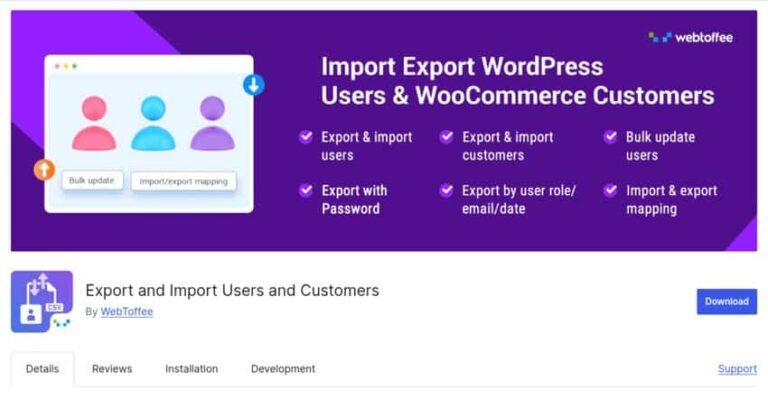
Import and Export WordPress Users lets you easily import users WordPress and export users WordPress without touching the database. This is best for membership websites, WooCommerce stores, and eLearning platforms (or anywhere else you are handling bulk user data).
The plugin allows you to upload and download CSV files, map the columns to WordPress fields, and includes all user roles and custom fields. The automation works great and saves time and reduces mistakes. You can also integrate WooCommerce so that store owners can manage and migrate customer accounts easily.
Key Features
- Users Exported based on Role and Metadata:You can export users by their WordPress roles (custom roles included), along with all the metadata and WooCommerce customer data.
- CSV Import with Role Mapping: The plugin allows you to import users WordPress from CSV files while mapping roles and supporting custom fields.
- Update Existing Users: During import, you can update existing user accounts, ensuring all information stays current.
- Bulk User Management: You can quickly perform bulk import users WordPress, along with export users WordPress, saving some time when dealing with large numbers of datasets.
- User-Friendly Interface: The plugin has a guided interface to assist you through every step, making it so easy even a beginner could manage their users safely.
Pricing: The Import and Export WordPress Users plugin has a free version, and its paid version begins from $49/year.
2. WP All Import
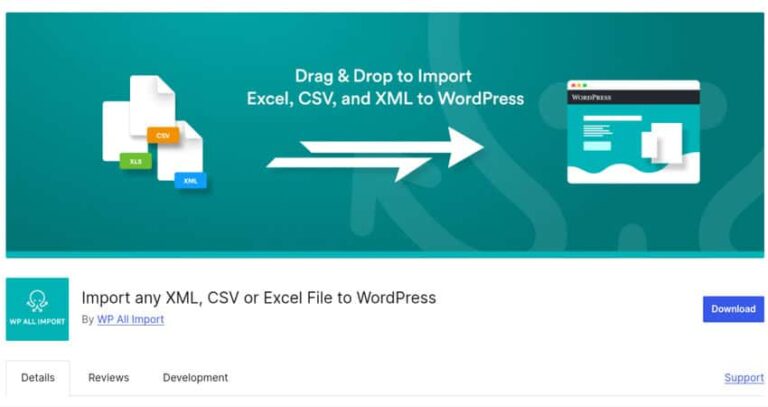
WP All Import is a powerful plugin that allows you to import users WordPress and manage WordPress export users seamlessly. It is ideal for large-scale migrations, complex sites, and stores with advanced user data, including WooCommerce customers.
WP All Import supports CSV and XML files, making it easy to map custom data fields to WordPress user attributes. Custom meta fields, roles, and other critical information are preserved during import. Its drag-and-drop interface simplifies mapping, and it handles large files efficiently, reducing errors and saving time for site admins.
Key Features
- Import Users from CSV or XML: User data in WordPress can be updated through the import of CSV or XML files, with proper verification that all necessary user information is transferred.
- Custom Field and Role Mapping: The plugin feature supports mapping of custom fields and user roles so that the imported user is given the correct role, and the metadata is the right one.
- Handles Large Files: WP All Import works for big CSV or XML files with no limit on the number of performance, thus it is the best option for sites with thousands of users.
- Drag and Drop Interface: The plugin has a simple drag and drop interface that helps you to easily map the user attributes in WordPress to CSV or XML fields..
- Import All Your WooCommerce Store Users: You can import users from WordPress along with all of the WooCommerce customer detail,s so the data stays together.
Pricing: WP All Import has a free version and the premium version starts at $99/annually.
3. WP Ultimate CSV Importer
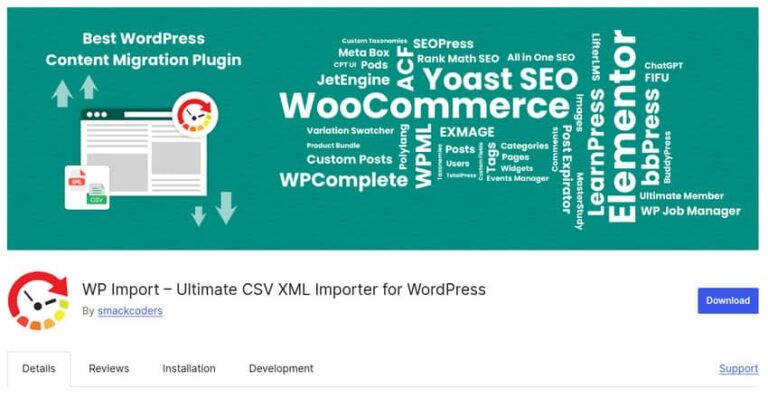
WP Ultimate CSV Importer is a flexible WordPress plugin to help you transfer data in bulk in a matter of minutes and easily. You can import, export, update, and manage your posts, users, WooCommerce products, and other custom fields with the use of CSV or XML files. The plugin was designed to be used by advanced site admins, and anyone should only be comfortable using it if they can manage that amount of data.
Key Features:
- Bulk Data Management: Import, export, and update users, products, posts, and custom fields with all under one roof.
- Automated Schedule: With the auto-schedule feature, you can create imports and update your installation, providing time savings on repetitive tasks.
- Intelligent Field Mapping: Field mapping is easily done in the user interface to match the fields from the CSV or XML file to the corresponding fields in WordPress.
- Plugin Support: The plugin offers support for integrations with popular plugins (WooCommerce, ACF, etc.) to eliminate any headaches.
- Complete Activity Logs: Unlike their competitors, this plugin records activity logs of every import and export, as well as on-demand reports for each record as they are being imported or exported.
Pricing: WP Ultimate CSV Importer is available in a free version and Premium begins at $149/year for a single site license.
Pro Tips for Great User Data Management

Managing a large user database can be easy if you follow these simple tips:
1. Be Sure To Always Back up Your Data
Before ever importing or exporting users, always be sure that you take a full backup of your site just in case.
2. Be Sure to Use a Clean, Nicely Formatted CSV File
Make sure your CSV file is accurate, free of duplicates, and appropriately formatted, to avoid migration errors!
3. Test on a Staging Site
Always test the user import and export process on a staging environment before applying changes to your live website.
4. Choose the Right Plugin
Use simple tools for small sites, but opt for advanced plugins like WP All Import for bulk data management.
5. Secure User Data
When handling sensitive user information, always use secure plugins and enable data encryption to ensure privacy and comply with regulations.
Wrapping Up!
Managing bulk user data can be a painless experience. Users can easily import WordPress users and export WordPress users with the right plugins without altering the meaning of their data. There’s probably somebody who would need to labor through your project at some point. It could be when migrating to a new site.
They might just want to make a backup of the database and keep the users secure. Or their only goal could be to sync user profiles across websites. Using a trusted WordPress import and export plugin will make it simple to complete the process without difficulty.