




Email notifications are essential to ensuring your store runs properly, from WooCommerce transactional email such as order confirmations to admin notifications of new orders. However, when WooCommerce email notifications not working becomes an issue, your customers are left in the dark. This can cost you sales and also create a poor shopping experience.
This guide explains the most common WooCommerce email issues, why they happen, and 10 proven fixes to get your store’s emails working again, without guesswork.
Common WooCommerce Email Issues and Their Causes
If your WooCommerce emails not sending or your WooCommerce emails not working, you most likely have one of the following issues:
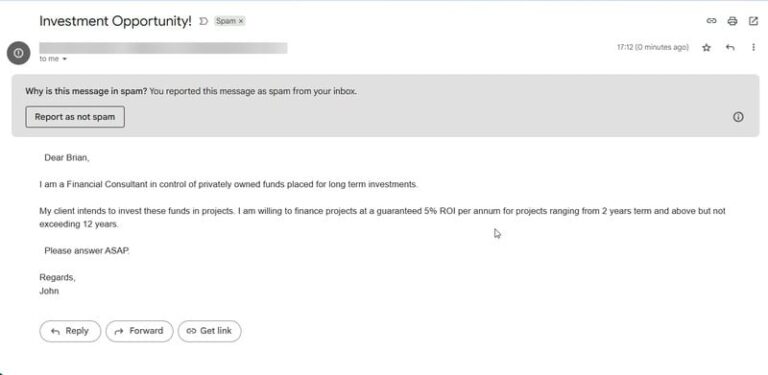
- Updating Spam Folder: Very often, store owners are reporting that the WooCommerce email notifications are “not working” because the emails are hitting their spam folders. This is commonly the case if your sending email address doesn’t match your hostname or if you haven’t created an SPF/DKIM authentication record.
- SMTP Plugin Not Set Up: If you have no SMTP Plugin installed with WooCommerce, then WooCommerce will utilize the PHP mail function. The PHP mail function can be unreliable on many servers, so you will have email sending inconsistencies because of the PHP mail method being used, especially if your hosting service has blocked PHP mail altogether.
- Plugin or Theme Conflicts: In most cases, it is a theme function or a third-party plugin that is interrupting the WooCommerce email configuration settings, which stop WooCommerce from sending order emails to the customers or admins.
- Bot Attacks and Fake Orders: In these cases, the fault lies with malicious bots creating a constant flow of fake orders into your checkout page without the ability to fulfill these will eat up server resources which slowing email delivery or completely blocking it.
- Wrong Email Settings: If you’re having problems sending emails from WooCommerce and your settings are incorrect, or if the email of the recipient has certain settings enabled, WooCommerce may fail to send emails.
- Authentication / Password Changes: If you are changing passwords for email accounts, OAuth Tokens, or user account mail server accounts, you will have to update them in the SMTP Plugin, or it may cause possible delivery issues.
- Restrictions on hosting: Shared hosting plans may have limits for the maximum number of emails you can send daily, or even hourly, which may mean WooCommerce won`t send emails from subscriptions or orders during busy sales periods.
Need reliable WooCommerce email configuration?
Hire WooCommerce developer today!10 Ways to Fix WooCommerce Not Sending Emails
If you are looking for a solution for “WooCommerce emails not sending or WooCommerce emails not working,” you can start the email delivery for your eCommerce store with the following suggestions:
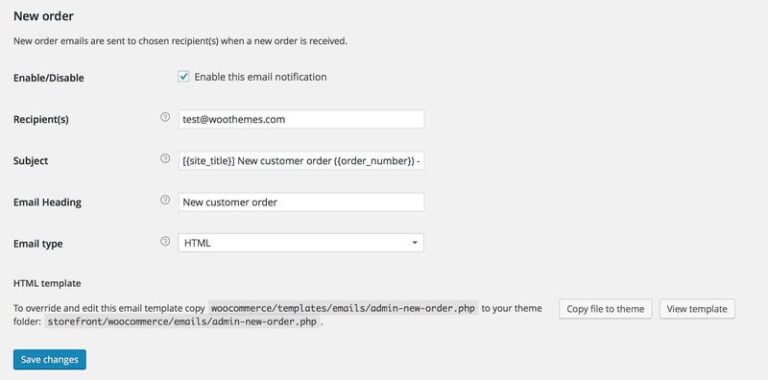
1. Check WooCommerce Email Settings
- Go to Dashboard > WooCommerce > Settings > Emails and –
- Verify the recipient email addresses.
- Check subject lines and email content.
- Turn on all toggles for WooCommerce transactional emails.
- Even a minor misconfiguration here can prevent WooCommerce from sending order emails.
2. Utilizing SMTP Plugin for WooCommerce:
- Install the plugin
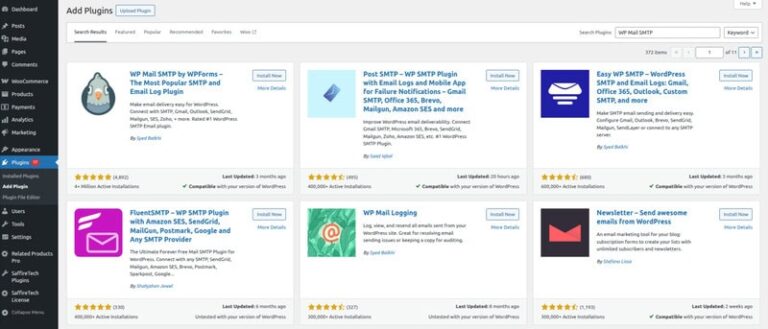
- Dashboard > Plugins > Add New → search “WP Mail SMTP”, “Post SMTP Mailer”, or “FluentSMTP” → Install → Activate.
- Open the plugin settings
- Dashboard > (WP Mail SMTP / Post SMTP / FluentSMTP) > Settings.
- Choose your mailer
- Select your mailer (SendGrid, Amazon SES, Gmail/Google Workspace, or Other SMTP) and then configure with Host, Port, Encryption, credentials, and API Key or OAuth (do a full OAuth auth or just paste your API key).
- Set sender information
- Select domain-based From Email (e.g., orders@yourstore.com) and From Name. Enable Force From Email and Set Return-Path (if available).
- Save & send a test
- Use the plugin’s Email Test to confirm delivery to your inbox (not spam).
- Align WooCommerce email settings
- Dashboard > WooCommerce > Settings > Emails → ensure notifications are enabled and sender options match your plugin settings.
- Add authentication records
- Make SPF, DKIM, and DMARC records in your DNS for better deliverability of your emails.
- Enable logging(Optional)
- Turn on email logs in the plugin (or use an email logging plugin) to troubleshoot failed sends.
Need more details on plugin picks?
Read: 5 Best WordPress SMTP Plugins to Fix Email Delivery in 2025
3. Authenticate your Domain by setting up your SPF, DKIM, and DMARC:
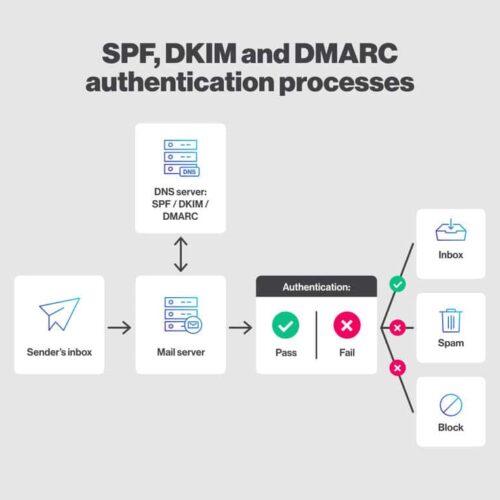
Secure you add your SPF, DKIM, and DMARC records to your domain registrar. Even if you think your WooCommerce email notifications are set up fine, they could end up in spam if you don’t enter these records. If you are using Google Workspace for email, you can view the article on how to set up DKIM.
- Log in to your domain registrar account.
- Now, log in to your domain registrar account.
- Once in, get into the domain’s dashboard (GoDaddy, Namecheap, Cloudflare, etc.).
- Locate the DNS settings
- Navigate to DNS Management or DNS Zone Editor.
- Add SPF record
- Insert a TXT record for SPF to authorize your mail server to send emails on behalf of your domain.
- Add DKIM record
- Create a DKIM key from your email provider and include it as a TXT record in your DNS.For Google Workspace users: Follow this official DKIM setup guide
- Add DMARC record
- Create a DMARC policy to control how unauthenticated emails are handled and add it as a TXT record.
- Verify your records
- Examine the configuration of SPF, DKIM, and DMARC with the help of tools like MXToolbox and Google Admin Toolbox.
- Why this matters
- If your WooCommerce email notifications are configured correctly, you have to have the records, or your emails will get marked as phishing and head straight to spam.
4. Test Your WooCommerce Email Deliverability
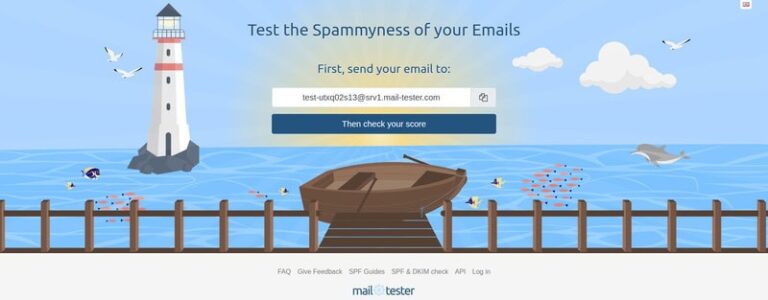
- Install a testing tool like Mail-Tester or a similar email testing service.
- Send a sample transactional email
- Go to WooCommerce > Orders > Resend Order Emails and send a test email to the address that Mail-Tester gives you.
- Check your deliverability score
- Mail-Tester will analyze your email setup and provide a score along with potential issues.
- Fix identified problems
- Use the report insights to identify the root cause of the issues and fix them if your emails are going to spam, SPF/DKIM are missing, or email authentication is weak.
5. Inspect for Plugin and Theme Conflicts
- Switch to a default theme
- Visit Dashboard > Appearance > Themes and install an original WordPress theme like Twenty Twenty-Four.
- Stop the activation of the unnecessary plugins
- Go to Dashboard > Plugins > Installed Plugins and deactivate all the plugins except for WooCommerce and your SMTP plugin.
- Test your emails
- Send a sample WooCommerce transactional email to see if the issue persists.
- Re-enable plugins one by one
- Activate each plugin individually to identify which one causes the conflict.
Looking to customize your WooCommerce setup for better compatibility and smoother performance? Our WooCommerce Custom Development services can help you build tailored solutions that work seamlessly with your theme and plugins.
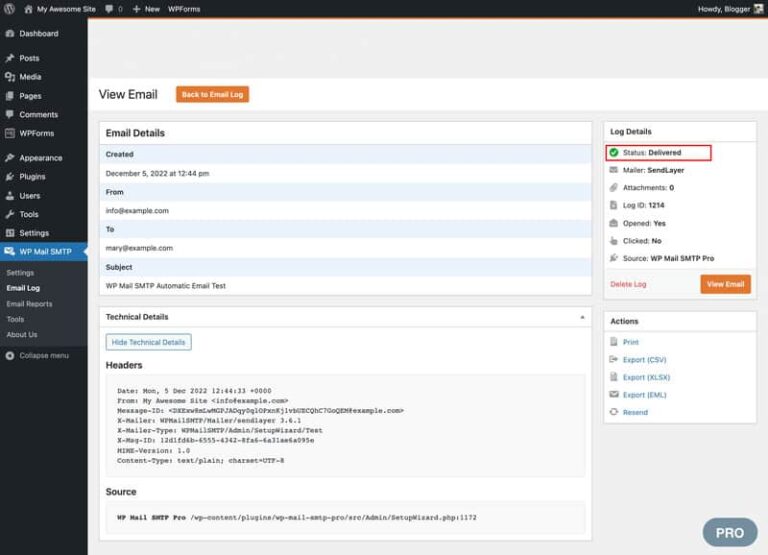
6. Monitor Email Logs
- Install an email logging plugin
- Go to Dashboard > Plugins > Add New, search for Email Log, and install it.
- Enable logging
- Once activated, go to Dashboard > Email Log and make sure logging is turned on.
- Send a test email
- Trigger a WooCommerce transactional email and check if it’s being logged.
- Identify the issue
- If the email appears in the log but isn’t delivered, it’s a sending issue.
- If the email doesn’t appear in the log, it’s a generation issue.
7. Increase Hosting Email Limits
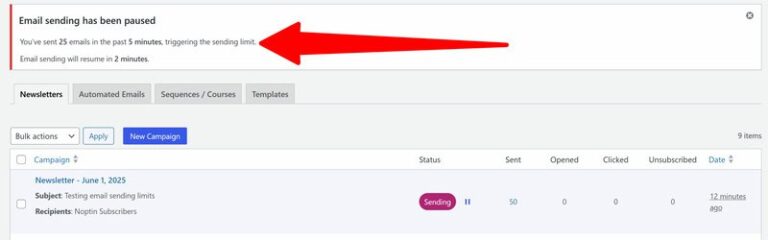
- Check your current email sending limits
- Go to your hosting dashboard or contact your provider to confirm the allowed emails per hour/day.
- Request higher email limits
- In case you have a shared hosting, get your provider to raise your email-sending limit so that WooCommerce order emails can be sent without any interruptions.
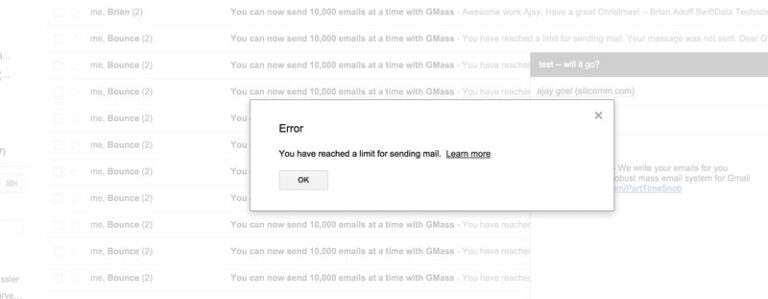
- Manage hosting storage usage
- If your email storage is nearly full, delete unnecessary emails or files from the server to free up space, then you’ll get such a message —
- Fix “Too Many Inodes” errors
- Some hosts, like SiteGround, may send a “Too Many Inodes” warning if storage usage is high. Delete unused files or old emails to restore email sending functionality.
8. Update SMTP Credentials
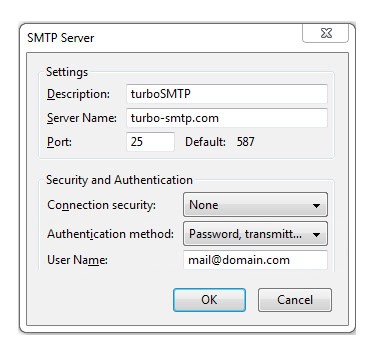
- Check for password or API changes
- If you have recently changed the password of the email account or the API key for SMTP that you are using, then your WooCommerce emails may disconnect.
- Log in to your SMTP plugin
- You can find WordPress Dashboard > Settings > Your SMTP Plugin (e.g., WP Mail SMTP, FluentSMTP, Post SMTP).
- Update credentials
- Enter the new email password or API key inside the SMTP plugin settings.
- Save changes and test
- Run a test email to confirm WooCommerce transactional emails are working again.
Need the help of an expert in setting up SMTP or fixing email delivery that causes trouble? Our WooCommerce Plugin Developers, who have years of experience, can install, troubleshoot, and customize the plugins so that your store can email without any interruptions.
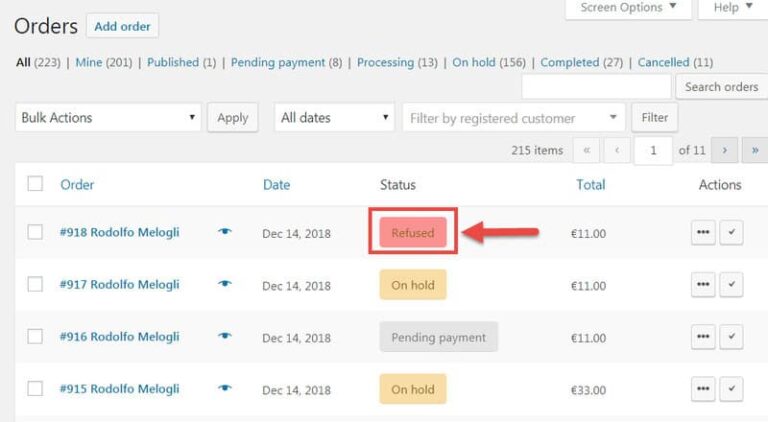
9. Turn on Order Status Notifications
- Go to WooCommerce Email Settings
- Dashboard > WooCommerce > Settings > Emails is where you must go.
- Check email triggers
- Open each transactional email template (e.g., New Order, Completed Order, Customer Invoice).
- Verify correct statuses
- Make sure every email is linked to the appropriate order status. Example: A “Completed Order” email will only send when the order status is set to Completed.
- Save changes and test
- Place a test order to confirm that emails trigger correctly.
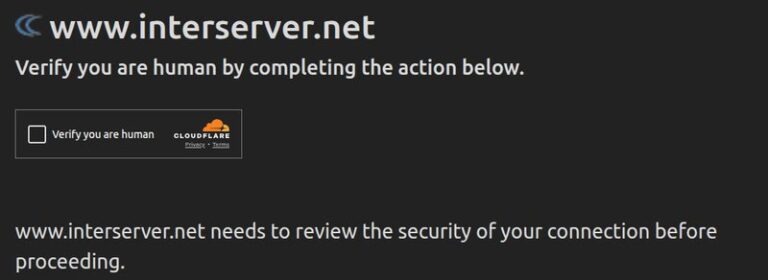
10. Secure Your Checkout from Spam Bots
- Set up a CAPTCHA or bot deterrent plugin
- The likes of Google reCAPTCHA, hCaptcha, or Akismet are tools that can be used to prohibit the entry of bot-generated spam orders.
- Check out the use of CAPTCHA on the checkout page
- Go to Dashboard > WooCommerce > Settings > Advanced > Checkout and add CAPTCHA there.
- Use Cloudflare Bot Protection
- Enable Cloudflare’s Bot Management or Turnstile CAPTCHA to filter out malicious bots before they reach your checkout.
- Block fake orders
- Spam orders can overload your mail queue and lead to WooCommerce emails not sending.
- Test checkout flow
- Place a dummy order to confirm everything works smoothly without affecting real customers.
Preventing WooCommerce Email Issues in the Future
The best way to avoid WooCommerce emails not sending problems is to —
- Set up reliable email delivery from the start, use a trusted SMTP plugin for WooCommerce, or a service to prevent server restrictions from blocking emails. This ensures smooth order confirmations and notifications.
- Utilize an authenticated SMTP service platform such as SendGrid or Amazon SES to increase deliverability and skip spam filters. They’re more reliable than standard hosting emails.
- Authenticate your domain with SPF/DKIM/DMARC, boost trust with email providers, and prevent your WooCommerce transactional emails from being marked as spam.
- Test emails after major updates or hosting changes, run quick test orders to catch WooCommerce email notification not working issues before customers face problems.
- Monitor Email logs weekly to catch delivery failures early lets you fix issues like bounced emails before they affect customer communications.
- It is recommended that you keep WooCommerce email settings updated; modify “From” names, addresses, and templates to enhance professionalism and trust.
- Stop your store from spam-packed attacks by deploying security measures that block spam bots from flooding your email system.
- Be certain that your host is capable of handling your email load and allocate plans that can absorb peak traffic without hitting email sending limitations.
Conclusion
A single missed order email can create confusion, but ongoing WooCommerce emails not working can hurt your business reputation. This should fix all the problems, and you will be on your way to reliable delivery and keeping your customers and store administrators updated with real-time transactional emails.
Frequently Asked Questions
What causes my WooCommerce transactional emails not to be sent?
Common causes are misconfiguration of email settings, not using SMTP authentication, or some blocking from your host.
Can I fix WooCommerce not sending order emails without a plugin?
Yes, you can, but an SMTP plugin greatly increases reliability and delivery.
Could you help me connect to a professional who can help with fixing the problems we are having on our site
Sure, we have a team of WooCommerce developers who are very knowledgeable and ready to help you fix all the email issues that you have.
Why are my WooCommerce order emails ending up in SPAM?
Use SMTP plugins instead of WooCommerce’s default email to avoid deliverability issues caused by poor domain authentication or a spam-flagged server IP.
Do I need coding skills to solve WooCommerce e-mail issues?
You don’t need coding skills. Most issues can be fixed via WooCommerce settings, plugin updates, or SMTP setup. For advanced setup, you can hire WooCommerce developer.